
Printing & formats
How to print specific pages in a PDF
The page-range box lets you take four pages out of a long file instead of printing all of it. Here is where that box lives on Windows and Mac, and which four pages are worth the paper.
You have the file, and it is long. Printing all twenty-four pages feels like a project, so you put it off. The other option is not much better: fumbling with a phone screen while you try to take notes in the waiting room, your name about to be called.
There is a middle path, and it is one setting. The print dialog can print a page range. Pull out the four pages you will actually write on, leave the rest in the file, and clip those sheets to a small board that fits in a purse.
Need A4 or large print?
The visit pack builder, part of the free visit kit, prints the same kind of blank pages in true A4 or US Letter, in standard or large print, so you do not have to rescale a Letter file.
Free with the visit kit: enter your first name and email, reply VERIFY to our short email, and we email you the link.
Choose four pages, not twenty-four
Which four? The ones that hold a pen stroke. For a nail or foot-care visit, that short set is usually:
- An appointment snapshot — the date, who you are seeing, and the one thing you most want to raise.
- A question card — your questions, written before you go, with room for the answer beside each one.
- A notes page — for what is said in the room, in your own shorthand.
- A review page — what you understood, what is still unclear, and what happens next.
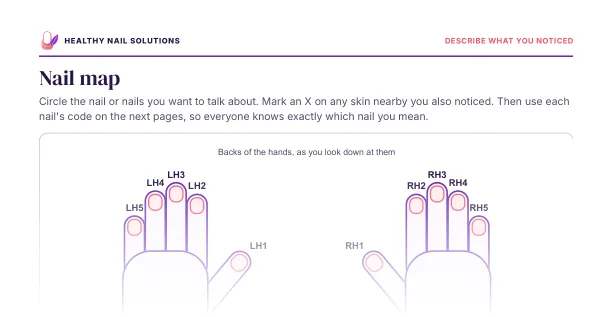
The free five-page Quick-start planner is laid out as a how-to page, an appointment snapshot, three questions with conversation notes, a week of notes, and a review page. Print pages 2, 3, 4 and 5 and you have the snapshot, the questions, the notes and the review on four sheets; the instruction page stays in the file once you have read it. A nail map is another page worth adding when a picture says more than a paragraph.
Working from the 24-page visit kit instead? The same four jobs sit on page 4 (the nail map), page 13 (your three questions, with room for the answers), page 14 (the visit snapshot and bring list) and page 15 (the visit record). In the page-range box, type 4, 13-15. After the visit, page 16, the follow-up tracker, is the one to print next.
Write the page numbers on a sticky note before you open the dialog. Ten seconds, one fewer stack of misprints.

Find the page-range box
The setting hides in the same place in most apps. Open the file, open the print dialog, and look past the basic options. In Microsoft Edge, for example, the page choices sit under More settings and offer all pages, odd pages only, even pages only, or a custom range where you type numbers such as 1-5 or 3, 6, 8.
1. Open the print dialog.
Press Ctrl+P on Windows or Command+P on a Mac, or right-click an empty part of the page and choose Print.
2. Find the Pages option.
Look in the expanded settings for a section labeled Pages or Page range, and choose the option that lets you type numbers.
3. Type the range.
Pages in a row: 2-5. Pages that are not next to each other: 2, 3, 5. If your app will not take a comma list, print in two short runs.
4. Set the scale to Actual size.
More on that below.
5. Read the preview, then print.
The preview should show only the pages you named. If it says 24, the range did not take.
How to print specific pages on a Mac
The Mac print sheet asks the same question in different words. Look near the top for Pages, switch it from All to the range, then type the first and last page in the From and To fields.
Two habits help. Expand the sheet first, often with a button labeled Show Details, because the short version hides the range. Then check the preview on the left: the page count there is the fastest way to see whether your numbers took.
Two sides, and the right size
If you want four pages on two sheets, print the odd pages first, turn the stack over, and print the even pages. The Edge page choices include odd pages only and even pages only for exactly this. Which way round the stack goes depends on your printer, so run a two-page test and look at how the sheet comes back. Watch for blank pages too: the LibreOffice guide to PDF export describes a setting that includes automatically inserted blank pages in the file, which it recommends when a PDF will be printed double-sided. Our guide to printing on both sides walks through the stack order.
The other common surprise is size. Edge describes Fit to printable area as adjusting the content to fit inside what the printer can reach, and Actual size as printing at the original size with no scaling. For a form you are going to write on, Actual size keeps the lines and boxes where they were designed to sit. Edge also suggests a preview or a test print before a large batch; for four pages, print one sheet first.
Clip the four pages so they travel well
Four loose sheets arrive creased, and a creased question card is hard to read when you are nervous. A small clipboard that holds a few sheets and still fits in a purse keeps the set together and gives you a hard surface for writing in a waiting-room chair.
What to check first: the board size against the paper you print on, since Letter and A4 pages are not the same shape; a clip that holds four sheets without tearing the top edge; and the weight, because a heavy board that stays at home helps nobody. Our evaluation guide to clipboards for appointment notes sets out those checks in a table and names no products.
You may not need to buy anything. A folder with a stiff back, a magazine under the sheet, or a binder clip on the top edge does the same job for one visit. Printing help, including double-sided settings and paper sizes, lives on our file access help page.
A fictional example: four pages instead of twenty-four
Printed pages 2, 3, 4 and 5 of the five-page planner: snapshot, questions, notes, review. Clipped to a small board, question card on top, so it is the first thing in hand at the front desk.
Illustrative only. Not a real reader's story and not a health result.
Nothing on those pages makes an appointment longer or an answer clearer. What they do is put the question you wrote at home into your hand, where you can read it out loud, and give you one place to write the answer down before you leave the building.
“I have already spent money on things that did not work”
That is a fair reason to be wary, so here is the honest version of what you get and what you do not.
What you do not get: anything that treats a nail. This site does not diagnose, does not recommend a product, cream, soak or routine, and does not claim that a page of paper will change how a nail looks. If a free download promises that, close the tab, whoever made it.
What you do get: four organizing pages, a place to write your main question before the visit, and one place to keep what was said afterward. That is a small thing. It is also the part of the visit you control.
The ask, in full. The kit form asks for a first name and an email address. You reply VERIFY to our short confirmation email, and then we email you the link to the download page; four tip emails follow about 2, 4, 7 and 11 days later, and then the series ends. Every email has an unsubscribe link at the bottom. The form asks nothing about your nails, your medicines or a diagnosis, and we ask people not to send that information. The files are static, so what you type into the DOCX stays on your own device, and the DOCX works offline. There is no account and no checkout, and nothing is sold on this site. Want to see the vocabulary of a question sheet before you decide? The 42-prompt question bank on the Appointment Question Card page opens in your browser, and our scope page says plainly what this site does and does not do.
Before you press print
- You wrote down the page numbers you need before opening the dialog.
- The range is typed in the form your app accepts: 2-5 or 2, 3, 5.
- The scale is set to Actual size, not Fit to printable area.
- The preview shows the right number of pages.
- You printed one test sheet before a longer run.
- Your four pages have somewhere to live: a clipboard, a folder or a binder clip.
None of that is medical advice, and none of it changes what happens in the room. It just means the question you wrote at home is on the sheet in your hand.
Organization tools, not medical advice. This page helps you prepare questions and keep notes. It does not diagnose a nail condition, recommend a treatment or promise a result. For an assessment, speak with a qualified health professional. Educational and medical scope
Questions people ask
How do I print specific pages of a PDF?
Open the print dialog, find the Pages option, choose the custom range, and type the numbers. A run of pages is written 2-5. Pages that are not next to each other are written 2, 3, 5. If your app will not take a comma list, print in two short runs.
How do I print specific pages on a Mac?
Switch the Pages option from All to the range, then type the first and last page in the From and To fields. Expand the sheet if the option is hidden, and check the page count in the preview before you press Print.
Why does my PDF print smaller than the page?
It is usually a scaling setting. Fit to printable area shrinks the content to fit the printer's reachable area; Actual size prints at the original size. For a form you will write on, Actual size keeps the lines and boxes where they were designed to sit.
Does the free kit ask for health details?
No. The form asks for a first name and an email address, and that is all. There is no account and no checkout, and nothing is sold on this site.
Sources and editorial notes
- Microsoft, Print in Microsoft Edge, retrieved October 18, 2026. It describes the page choices (all, odd pages only, even pages only, and a custom range that accepts numbers such as 1-5 or 3, 6, 8), the shortcuts Ctrl+P on Windows and Command+P on a Mac, the difference between Fit to printable area and Actual size, and a recommendation to preview or make test prints before a large batch.
- LibreOffice Documentation, File Formats, Security and Exporting, retrieved October 18, 2026. It describes a PDF export option that includes automatically inserted blank pages in the file, which it recommends when the PDF will be printed as a double-sided document.
Examples are illustrative. Not clinically reviewed. See our Editorial Policy, Review Methodology and Affiliate Disclosure.
Keep going
More on paper, printing and keeping the pages that go to the visit.
File Access Help
Open, edit, print and save the free files.
Paper for Printing Planner Pages
Size, weight, opacity and cost per sheet.
Printers for Planner PDFs
Letter PDFs at actual size, supplies and running costs.
Four pages, one clipboard.
Pull out the pages you will write on, clip them together, and take your question with you.
Free: enter your first name and email, reply VERIFY to our short email, and we email you the link. Then 4 short tip emails over 11 days, each with an unsubscribe link. Nothing is for sale.